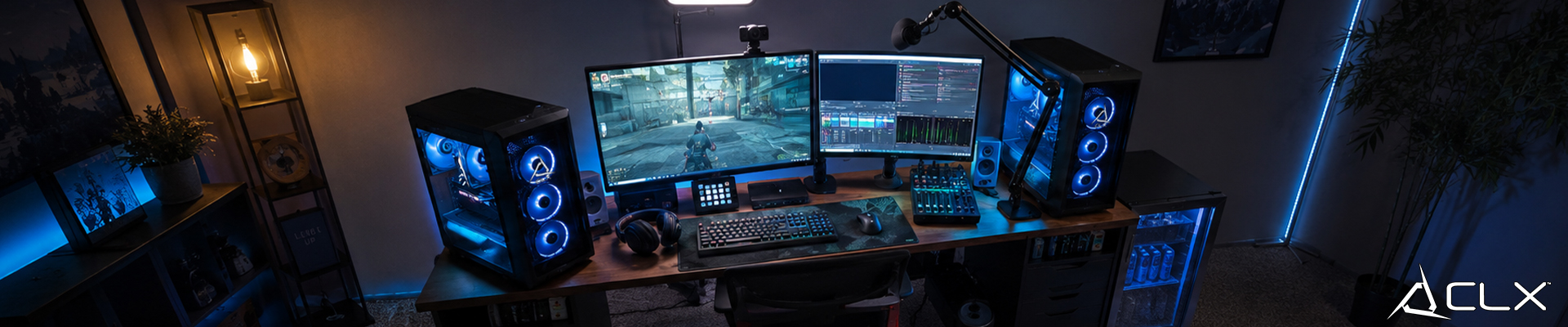
Two PCs, one stream. The gaming machine handles your frames, the streaming PC handles encoding, and neither one has to compromise. Here's exactly how the setup works and whether it's worth building.
What Is Dual PC Streaming?
Single-PC streaming means your CPU and GPU are doing two jobs at once: rendering the game and encoding the video feed to Twitch or YouTube. At 1080p in a lighter title, that's fine. At 1440p or 4K in a GPU-heavy game, encoding overhead eats into frame times and your stream quality drops to stay competitive.
Dual PC streaming splits those jobs. The gaming PC runs the game. A second PC, connected via a capture card, pulls the video feed and handles all encoding. Each machine does one thing well.
It's not new. Competitive streamers have used this setup for years. But the hardware to do it properly has gotten cheaper, and the capture card options are better than they've ever been.
What Hardware Does Each PC Need?
The gaming PC needs to be strong enough to push high framerates at your target resolution. That machine shouldn't be bottlenecked by encoding at all. If you're running something more modest, dual PC streaming matters more, not less.
The gaming PC doesn't need a fast encoder onboard since that job moves to the second machine. But it does need a GPU with clean video output, typically via HDMI or DisplayPort, and a port to spare for the capture card connection.
The streaming PC is where encoding lives. It doesn't need a powerful GPU for gaming. What it needs is a strong CPU with a good hardware encoder. If you want to use Nvidia NVENC encoding which is a dedicated hardware chip built into NVIDIA graphics cards used to process and compress video then a mid-range GPU like an RTX 5060 in the streaming PC works well and runs cool.
How Do You Connect the Two PCs?
The capture card is the physical bridge between machines.
Your gaming PC outputs video to the capture card (via HDMI or DisplayPort). The capture card sits in the streaming PC, either as a PCIe internal card or as a USB/Thunderbolt external unit, and passes that video feed into your streaming software. The streaming PC sees it as a video input source.
Popular options:
- Elgato 4K X and 4K Pro (USB-C and PCIe options): captures up to 4K60 or 1080p240. Solid driver support on Windows.
- AVerMedia Live Gamer 4K (GC553G2): similar spec range, good OBS integration.
- Magewell Pro Capture: overkill for most streamers, but worth knowing if latency or reliability is critical.
For audio routing, you have two main choices. The simplest: run audio out of the gaming PC through HDMI into the capture card alongside the video. The more flexible: use virtual audio cables (VB-Audio is free) on the gaming PC to send game audio, mic audio, and Discord audio as separate channels, then mix them on the streaming PC in software. The second approach gives you cleaner control over audio levels in your stream without affecting what you hear in-game.
Both PCs need to be on the same network, ideally connected via Ethernet, for any software-based communication between them. A gigabit switch handles that easily.
Software Setup and Encoding Settings
OBS Studio is standard on the streaming PC. Set your video source to the capture card input. From there, treat it like any other OBS scene.
For encoder settings on the streaming PC, x264 at medium or slow preset gives better visual quality than NVENC at the same bitrate, but it uses significantly more CPU. NVENC (on an Nvidia GPU in the streaming PC) is fast, efficient, and very close in quality at 6000 kbps and above. For Twitch at 8500 kbps (partner tier), NVENC fast or quality preset is hard to beat.
Recommended starting point for 1080p60:
- Bitrate: 6000 kbps (non-partner), 8500 kbps (partner)
- Keyframe interval: 2 seconds
- Encoder: NVENC (if GPU available) or x264 medium
- Resolution: 1920x1080, downscale filter: Lanczos
On the gaming PC, install OBS to monitor and route audio separately. Neither is required for a basic setup, but both help with monitoring.
The Real Tradeoffs
What you gain:
The main benefit is consistent encoding performance regardless of what the game is doing. A scene in a GPU-intensive title won't spike your encoder queue. Your stream quality stays flat across an entire session.
You also get clean separation for troubleshooting. If your stream drops frames, you know immediately whether it's the capture pipeline or the game side, because they're on different machines.
What it costs:
Two PCs means two sets of components, two PSUs, two Windows licenses, and more desk space. The capture card adds latency to your monitoring feed, typically 50-200ms depending on the card and settings, which means you can't game while watching your stream preview on the streaming PC without a delay. Most streamers just monitor audio on the gaming PC and ignore the stream preview.
Setup time is real. Getting audio routing clean, especially Discord or voice chat, takes iteration. Budget an afternoon for the first configuration, not an hour.
When it's not worth it:
If you're running a Ryzen 9 9950X3D2 or an Intel Core Ultra 9 285K and streaming at 1080p60, a single-PC setup with NVENC handles this without measurable impact on gaming performance. The dual PC overhead only pays off when you're maxing out your encoder on a demanding game, or when stream quality is professional-level critical.
Fixing the Most Common Problems
Stream looks blurry despite high bitrate: Check that the capture card is receiving the correct resolution and refresh rate from the gaming PC. If the gaming PC outputs 4K and the capture card is set to capture at 1080p with poor downscaling, the feed will look soft. Set the capture resolution to match your stream output resolution.
Audio sync is off: This is almost always a buffer setting in OBS. Under the capture source, add a fixed audio delay offset to align the audio with the video signal. Start at 0 and adjust in 10ms increments while watching a recording.
High CPU usage on the streaming PC during x264 encoding: Drop from slow or medium preset to fast. The quality difference at 6000 kbps is minimal, and the CPU headroom matters more for stable encoding than preset quality.
Capture card not detected: Reseat the PCIe card, check Device Manager for driver errors, and confirm the HDMI/DP cable from the gaming PC is actively carrying a signal (not just plugged in).
Is Dual PC Streaming Right for Your Setup?
It depends on what your current bottleneck actually is. If your single-PC stream drops frames during heavy scenes, check your CPU utilization and encoder queue first. A single-PC build with a Ryzen 9 9950X3D handles most streaming workloads cleanly, and adding a second machine to solve an encoder problem that doesn't exist wastes money.
But if you're already pushing your hardware and stream quality is a priority, the dual PC split makes the engineering case for itself. Clean separation of workloads, consistent output, and a troubleshooting path that actually makes sense.
Browse CLX's custom streaming and gaming PC configurations to find a build that fits whichever side of the setup you're speccing out.