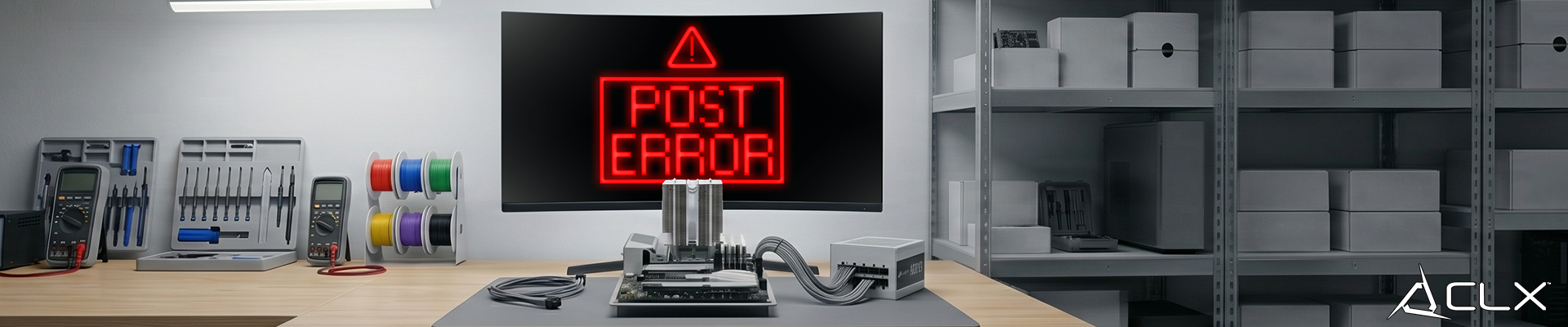
You hit the power button. The fans spin. The RGB lights up. The screen stays black. Your new system may be failing its Power-On Self-Test. This means the motherboard detects a hardware fault before it can even hand things over to the BIOS. We build and test hundreds of machines every week. Here is some of the ways we troubleshoot a dead boot on the bench.
Why is my new PC failing the initial power checks?
Start with the easiest fixes. Many POST failures come down to a loose cable. Before doing any troubleshooting with reseating parts or cable connections, be sure to unplug the PC and discharge the power supply by holding the power button down for 10+ seconds. When handling any components it is highly advised to wear proper electrostatic discharge wrist bands or similar equipment to be properly grounded and avoid damaging components via electric shock. Likewise handle components by their edges whenever possible and avoid contact with the electrical traces or circuit board.
Are all power supply connections fully seated?
Check the 24-pin main motherboard cable. Check the 8-pin EPS CPU power cables on the board, typically on the top left. Check the PCIe power cables going to your graphics card. A cable can look plugged in while the pins are not making full contact. Unplug them and plug them back in until you hear a physical click.
Is the monitor plugged into the right port?
If your system has a dedicated graphics card, your monitor cable must plug directly into the GPU. If you plug the DisplayPort or HDMI cable into the motherboard I/O panel, you will get a black screen. The motherboard may disable onboard video when a dedicated card is present, or have a CPU lacking onboard video entirely. Also, confirm the monitor is powered on and set to the correct input.
Do I need to disconnect my peripherals?
A faulty USB device can sometimes halt the boot process. Unplug your keyboard, mouse, external drives, and webcams. Leave only the power cable and the display cable connected. If the system boots, plug your devices back in one by one to find the culprit.
How do I troubleshoot the core hardware components?
If the cables are secure and you still have no display, the issue is on the board. Look for a row of four debug LEDs on your motherboard. They should be labeled CPU, DRAM, VGA, and BOOT. The light that stays on tells you exactly where the problem is.
How do I reseat the RAM to fix a no POST issue?
Remove the RAM carefully then press down firmly on both ends of the RAM stick while re-installing until the retention clips snap lock. If that fails, remove all the sticks except one and test them individually. Verify with your individual motherboard model where to properly install a single stick of RAM.
Is the graphics card causing a VGA error?
If the VGA light is on, the motherboard cannot communicate with the GPU. Push the release tab on the PCIe slot, remove the card, and reinstall it. You should hear a loud click. A heavy GPU can sag just enough in the slot to break contact on the right side. Reseating the card and adding a support bracket may fix this.
What should I check if the CPU debug light is on?
A CPU error light usually means bad mounting pressure or bent socket pins. If you overtighten the CPU cooler, it can warp the socket and break pin contact. Loosen the cooler screws by a quarter turn. If the error persists, take the cooler off, remove the CPU, and inspect the motherboard socket for bent pins using a flashlight.
Could a motherboard standoff cause a short?
If your motherboard is screwed directly into the case without standoffs, the metal traces on the back of the board will short out against the chassis. The power supply detects this and refuses to boot to prevent a fire. Verify that you only installed standoffs in the exact locations where your motherboard has screw holes.
How do I reset the BIOS to clear configuration errors?
Sometimes the hardware is fine, but the BIOS is confused. A factory reset clears bad memory timings and leftover factory test profiles.
How do I clear the CMOS?
Unplug the power supply from the wall. Find the flat, silver battery on your motherboard. Push the metal retention clip to pop it out. Wait five minutes. Put the battery back in, plug the power supply in, and turn the PC on. This forces the motherboard to relearn the installed hardware.
What do motherboard beep codes mean?
If your motherboard came with a tiny plug-in speaker, connect it to the front panel header. When the system fails to POST, the speaker will emit a series of beeps. One long beep followed by two short beeps usually indicates a memory error. Three long beeps can mean a GPU failure. Check your motherboard manual to translate the specific beep code.
What advanced troubleshooting steps should I take next?
If you have cleared the CMOS and reseated every component, you are possibly dealing with a dead part.
How do I test the Power Supply Unit?
A PSU can spin its own fan while failing to deliver adequate voltage to the CPU. You can test the unit with a digital PSU tester. If you do not have one, the only way to verify a faulty power supply is to swap it with a known working unit.
What is a minimum boot configuration?
Take the motherboard out of the case and place it on a cardboard box. Install only the CPU, the CPU cooler, one stick of RAM, and the power cables. If your CPU has integrated graphics, remove the dedicated GPU entirely. Short the two power switch pins on the motherboard with a screwdriver to turn it on. If it posts outside the case, you could have a short circuit inside the chassis.
When should I ask a professional to look at my build?
If you run a minimum boot configuration and the system still will not POST, you have a dead motherboard, CPU, or stick of RAM. Without spare parts to swap in, isolating the exact dead component is impossible.
Building a PC from scratch leaves you entirely responsible for diagnostics and warranty claims. If you want to skip the troubleshooting process entirely, let us build and test the machine for you. Browse our custom configurators at CLXGaming.com and select a rig with guaranteed stability out of the box.