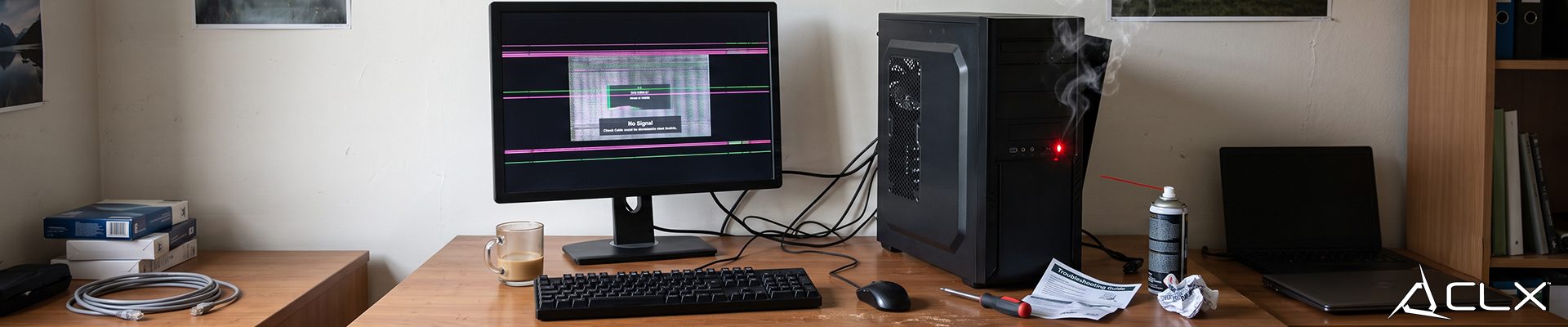
Your PC will rarely announce that it's done. No error message, no dramatic failure. It just starts feeling slower, louder, and more frustrating until you stop noticing because you've normalized the friction. Here's how to tell the difference between a bad day and a machine that's genuinely past its peak.
Slow Boot Times and Application Delays
If your PC takes more than 30 seconds to reach a usable desktop, something could be wrong. It could be a bloated startup folder, but on machines five or more years old, it's often a failing HDD or an NVMe drive with degraded NAND health. Run CrystalDiskInfo. If health is anything below 'Good,' the drive is already on borrowed time.
Application delays compound the issue. Opening Chrome, a DAW, or a game launcher shouldn't take 15 seconds on modern hardware.
Frequent Freezing, Crashes, and System Lag
Stuttering and low average framerate are two different problems, and conflating them leads to wrong upgrade decisions. Stuttering during gameplay usually points to RAM (speed or capacity), storage throughput, thermals, or outdated drivers. Low average framerate typically means a CPU or GPU bottleneck.
Can't Run Newer Software or Games
This one's straightforward. If a game's minimum spec asks for an RTX 3060 and you're running a GTX 1070, you're outside the support window. Developers target hardware from roughly three to four years ago on the low end. Older than that, and you're depending on driver hacks and settings compromises that get harder to maintain over time.
Your OS Is No Longer Receiving Security Updates
Windows 10 reaches end-of-life in October 2025. After that, Microsoft stops issuing security patches. Running an unsupported OS doesn't mean your PC immediately breaks, but it does mean unpatched vulnerabilities accumulate with no fix coming. If your hardware can't meet Windows 11's TPM 2.0 requirement, you're looking at a system old enough that the upgrade conversation is already overdue.
Storage Is Full and Performance Is Degrading
SSDs slow down when they're near capacity, typically past 85 to 90% used. If your boot drive is packed, clearing space often produces a noticeable speed improvement. If you've already cleared space and performance is still poor, check drive health with CrystalDiskInfo or HD Tune.
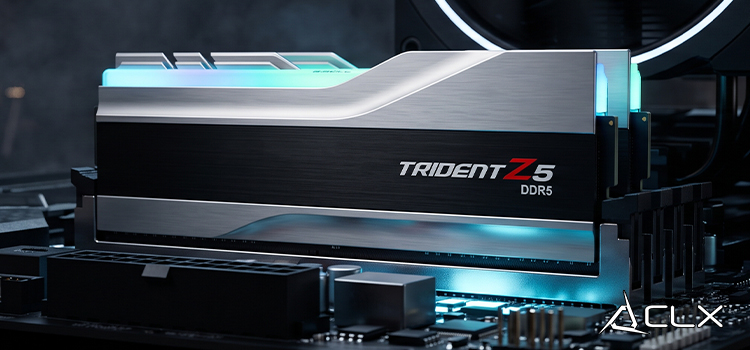
HDDs in a primary boot role are worth replacing on their own. A basic SATA SSD is a cheap fix. NVMe Gen 4 vs. Gen 5 won't meaningfully change game load times at runtime, so don't overspend there.
Repair Costs Are Approaching Replacement Costs
A new PSU and cooler on a five-year-old system isn't always a bad call. But if you're also looking at a motherboard failure, aging RAM, and a CPU that's bottlenecking everything anyway, the math changes.
A Ryzen 9 5900X and B550 board from 2021 can still run a number of games acceptably. A Core i7-8700K from 2017 paired with aging DDR4 is likely limiting whatever GPU you've paired with it, and AM4 socket upgrades only extend so far before you're fighting the platform ceiling.
When to Repair vs. Replace
Repair makes sense when the issue is isolated: a dead PSU, a failing drive, a GPU that's still within its performance window. Replace when the bottleneck is the platform itself, when the CPU, chipset, and memory generation are all due for a refresh at the same time.
If your system checks two or more boxes on this list, it's worth pricing out a new build. Start with CLX Gaming PCs to see what a current-gen system costs before assuming you need to wait.